Send a progress report to parents
Send parents a progress report on a student's hifz: choose the period, write one comment, check the preview and email it. What parents get, and printing.
For teachers, school admins, and parents Updated
On this page
A progress report tells a student’s parents how the last few weeks went. QuranPortal fills it in from the work you graded: how many pages of each type, where in the Quran, how much is recorded as memorised, and the pages with the most mistakes. You write one comment, check the preview and send it. Each parent gets a short email in their own language and reads the full report in QuranPortal.
Progress reports are switched on one school at a time. If you don’t see Send progress report, ask us to turn progress reports on for your school: contact us.
Where to start
There are three ways to open a student’s report. They all open the same page.
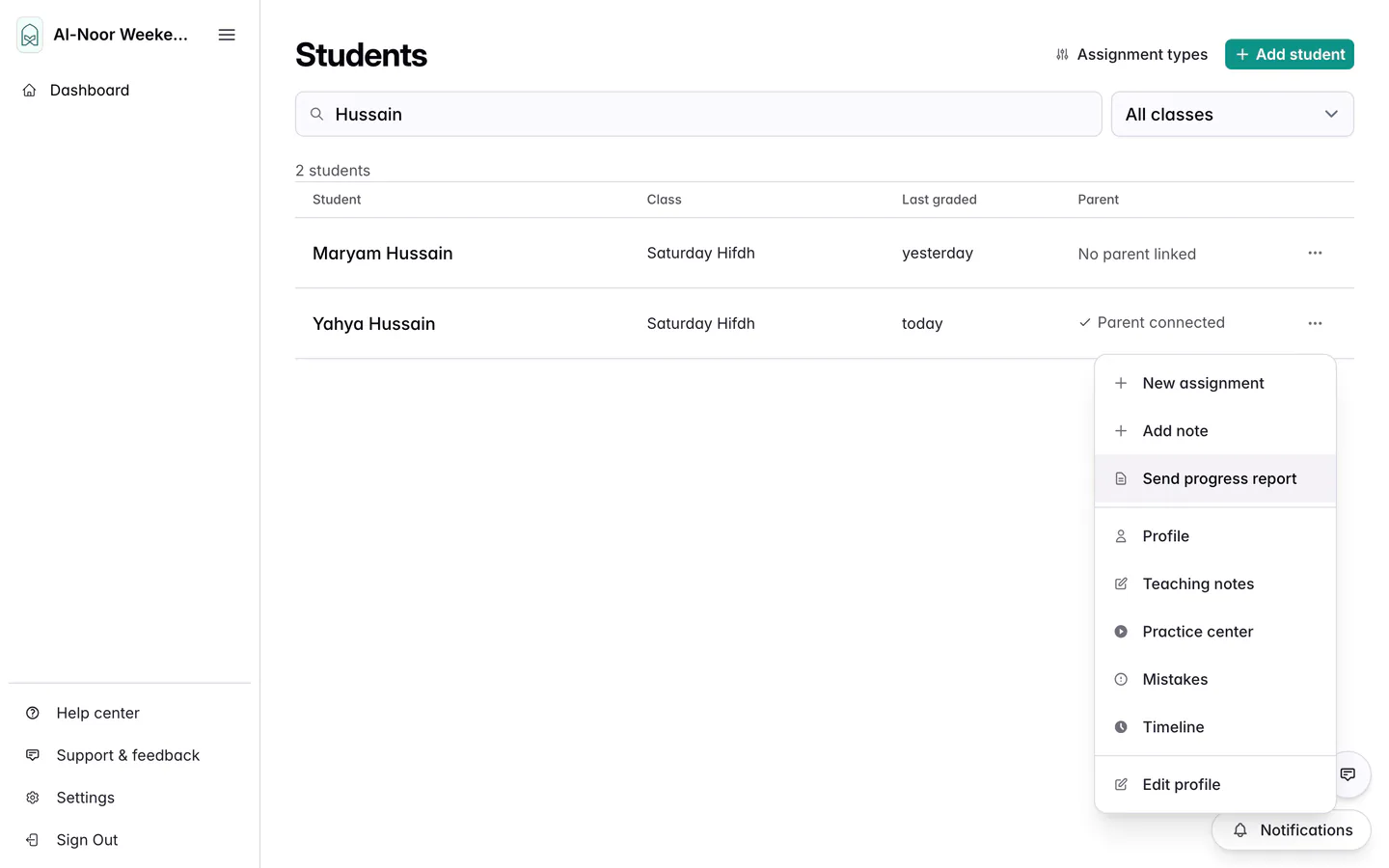
- The students list. Open Students, press the menu at the end of the student’s row and choose Send progress report.
- The student’s page. Press Send progress report under their name, next to Assignment, Note and Profile. On a phone, it is in the menu with three dots.
- A class’s list. On the Teacher Dashboard, press Progress reports at the top of the class. The list is the easiest way to work through a whole class.
A student has one report in progress at a time. Opening it again, from anywhere, picks up the draft where you left it.
Write the report
-
Choose the period
Under Period, the From and To dates set which graded work the report counts. Both days are included. The buttons under them fill in both dates:
- Since last report: from the day after the student’s last report ended, up to today. This is where a new report starts, so each report follows on from the one before. It only appears once a report has been sent.
- Last 4 weeks: the 28 days up to today. A student’s first report starts here.
- This month and Last month: calendar months.
For any other period, change the dates. The period ends today at the latest. The line under the dates spells it out and says when the last report was sent.
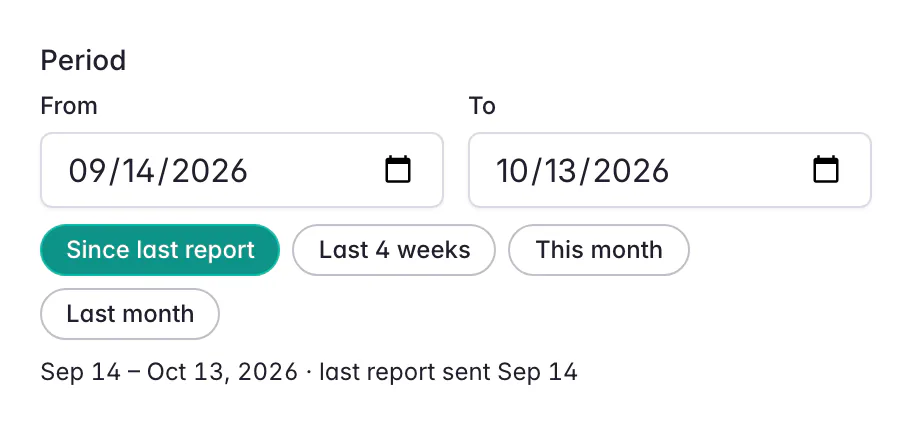
Since last report picks up the day after the last report ended. -
Write your comment
Your comment is what parents read first, and you can’t send without one. As the hint under it says, name one strength and one next step. Two or three sentences are plenty.
Focus until the next report is optional: one thing for the student to work on, such as a page to listen to at home. It shows under your comment.
Your comment is shown exactly as you wrote it. A parent who reads QuranPortal in another language sees a note such as Written in English by Idris Mahmoud.
-
Check the preview
Beside the form, Preview · what parents will see shows the report as it stands, and changes as you type or change the dates. It is in your language; each parent reads it in theirs.
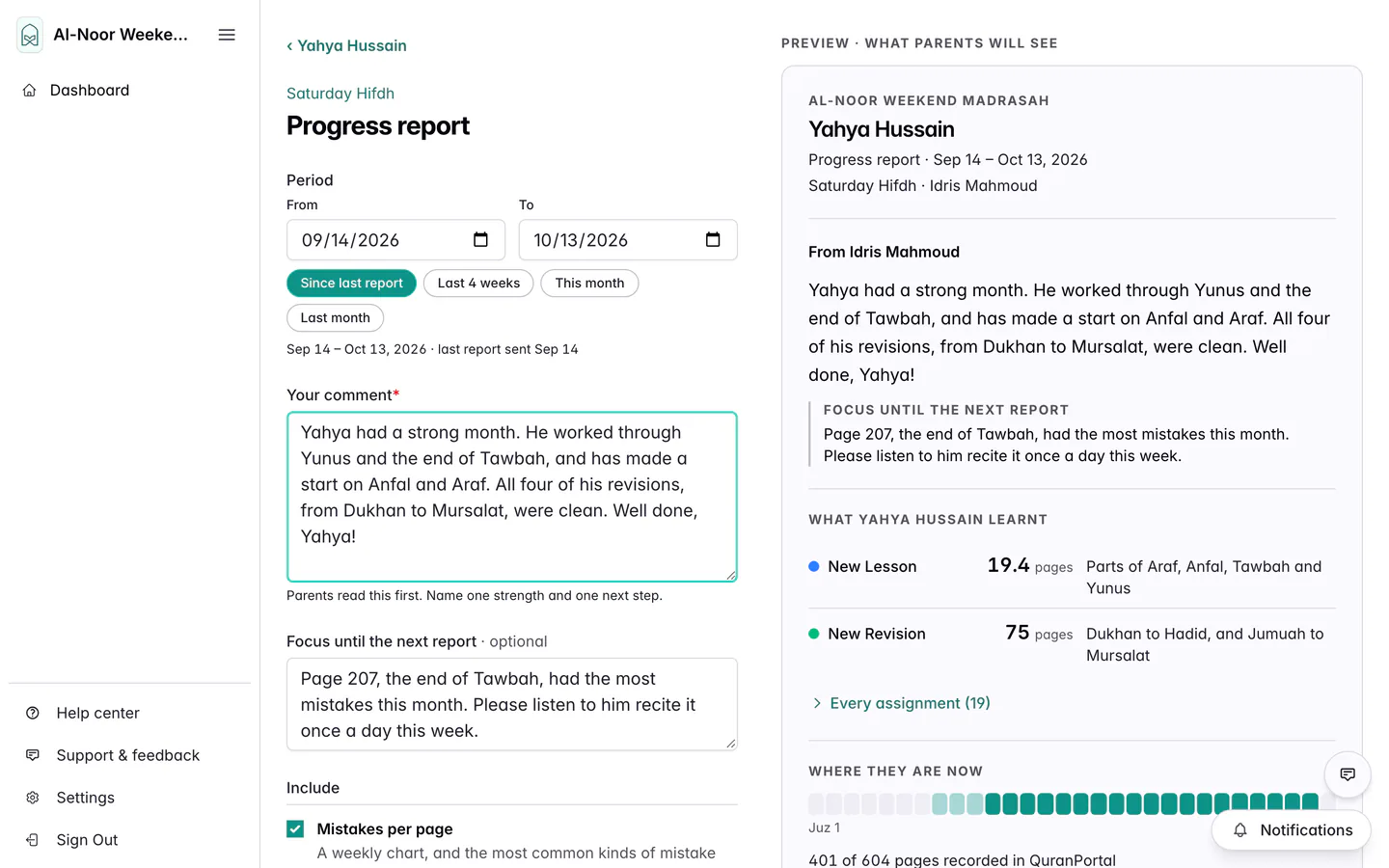
The form on the left, the report parents will see on the right.
There is no save button. The draft saves as you type, and Draft saved with the time shows next to the send button. You can close the page and come back later.
What the report shows
Everything in the report comes from work a teacher graded in the period. Work you set but didn’t grade isn’t counted.
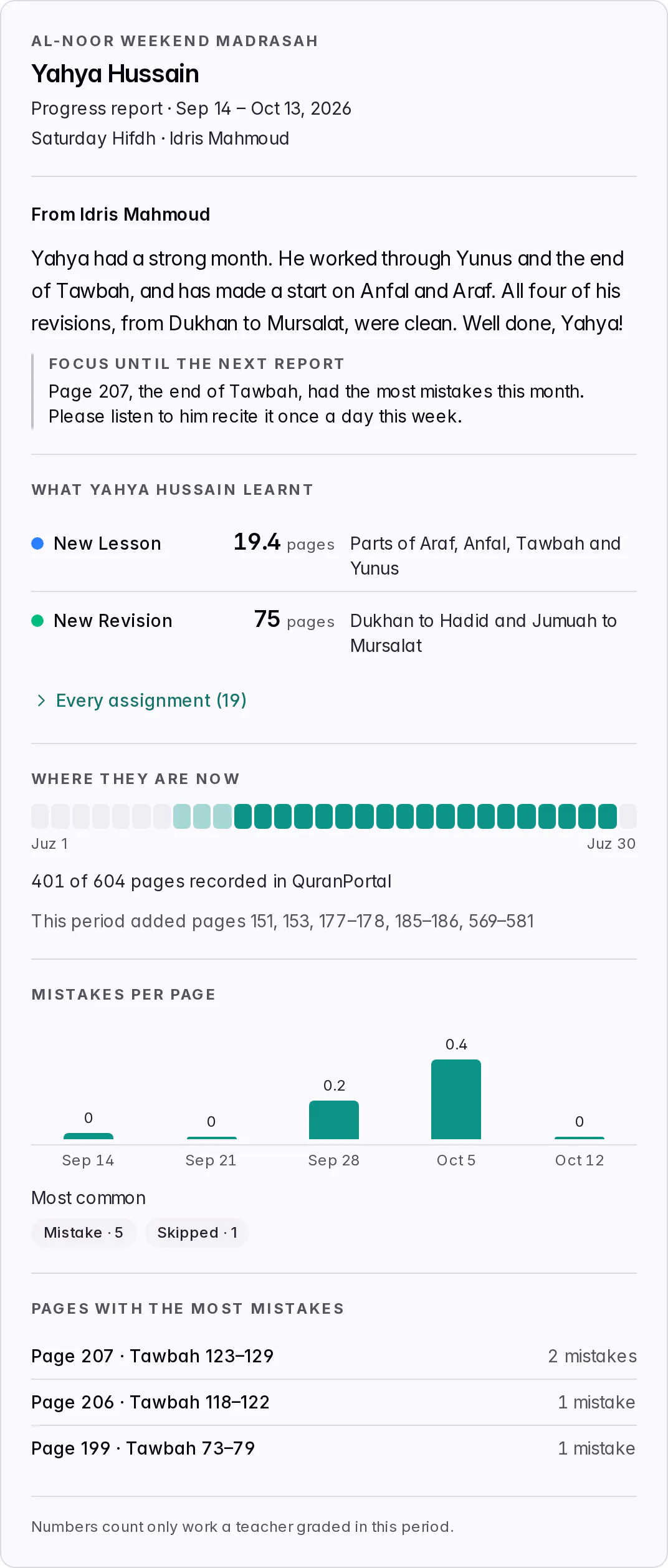
- What … learnt, with the student’s name: the pages of each assignment type, such as New Lesson and New Revision, and one line on where in the Quran the work was, such as Parts of Araf, Anfal, Tawbah and Yunus. Each assignment counts its pages once, however many times it was recited. Types are never added together, so revision is never read as new memorisation. Every assignment opens the full list, with each date, range and grade.
- Graded Fail. Passes aren’t listed. Only an assignment whose latest grade is Fail gets a quiet line, such as 1 revision graded Fail, with its range and date. An assignment you regraded to a pass, or one marked to redo, isn’t mentioned.
- Where they are now: a bar for the 30 juz and a line such as 401 of 604 pages recorded in QuranPortal. It counts everything recorded up to the end of the period, earlier history included. It only knows what was recorded in QuranPortal, which is why it says so.
- Mistakes per page: a weekly chart of mistakes for each page recited, from the counts you gave when grading, and the most common kinds of mistake. This is the only part you can leave out: untick it under Include.
- Pages with the most mistakes: up to three pages, from the mistakes you marked on words, with the verses on each. It tells a parent exactly what to listen to at home. With no marked mistakes, it says so.
- Attendance and Listening in the app appear only at schools that take attendance or use listening practice, and only when there is something to show.
Choose who it goes to
Send to lists each of the student’s parents: mothers, fathers and guardians connected to the student, and parents invited who haven’t joined yet. Observers never get reports. Each parent shows their email address, the language their emails are in, and either Parent account or Invited · hasn’t joined yet.
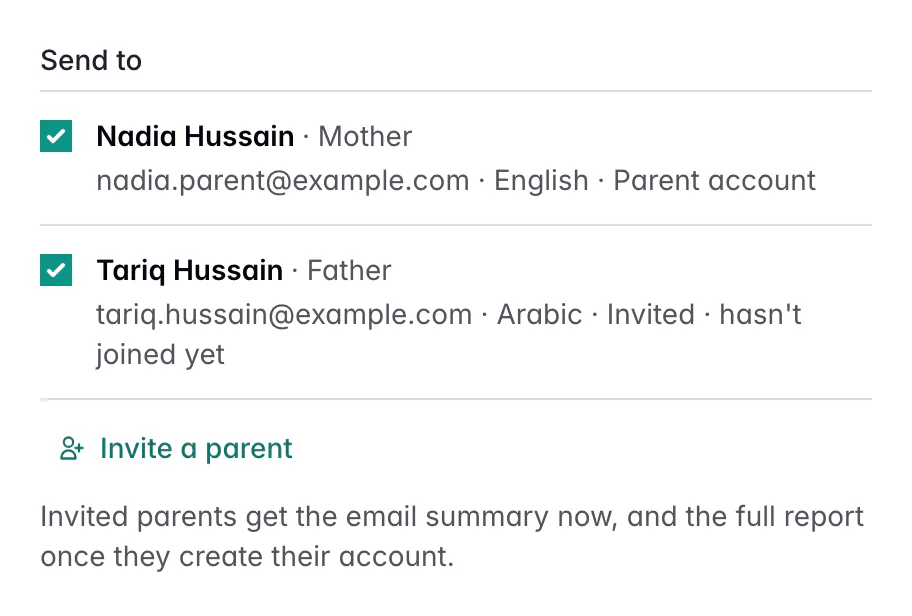
- Untick a parent who shouldn’t get this report. The send button counts the parents left ticked, such as Send to 2 parents.
- Invited parents get the email summary now, and read the full report once they create their account.
- Invite a parent (school admins only) opens the parent invitation form. Fill in their email and relationship, and choose the Language for emails: their invitation and reports come in that language. Press Invite and add to report, and you come back to the report with them ticked.
A report can’t be sent to nobody. If the student has no parent yet, the page says, for example, Hafsa Malik has no parent to send to yet. The draft still saves, so you can write it now and send it once a parent has been invited. Teachers who aren’t admins can ask a school admin to invite the parent.
Send it
-
Press Send
Press Send to 2 parents (the number is how many are ticked). QuranPortal saves the report as it is and emails each parent. A sent report can’t be changed.
-
Check who it was emailed to
The sent report opens, with Emailed to listing each parent and how their email went, such as Emailed with the date and time. If a parent says it didn’t arrive, press Resend email next to their name. QuranPortal doesn’t track whether an email was opened.
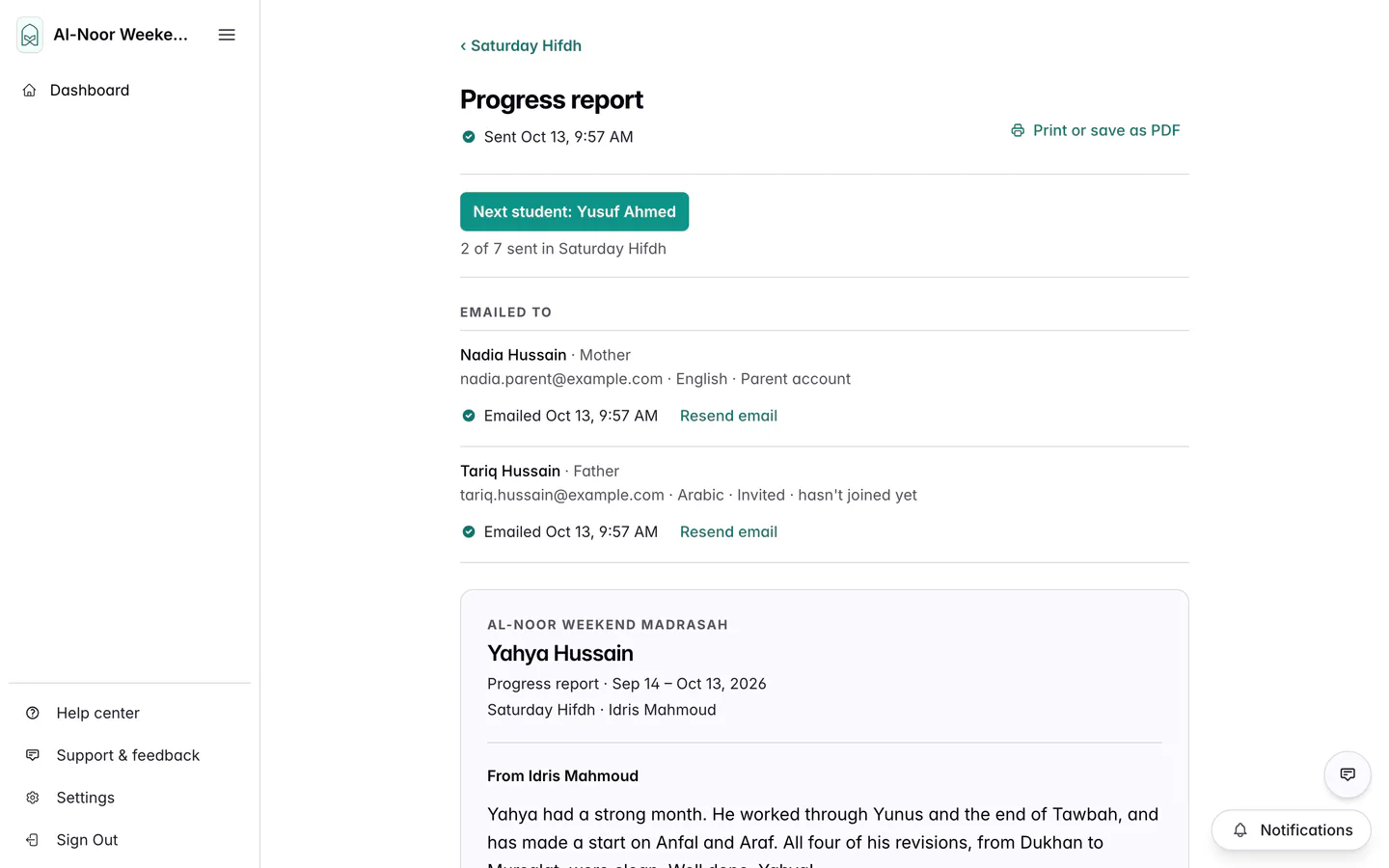
From here, Next student opens the next report in the class.
You can open a sent report again from the student’s page, the students list or the class’s list. Teachers and admins see Emailed to and Resend email; parents see only the report.
Work through a whole class
Press Progress reports at the top of the class on the Teacher Dashboard. The list shows each student, where their report stands, and how many parents they have:
- Not started, with first report or the date of their last one.
- Draft, or Draft · comment missing.
- Sent with the date, and under it each parent it went to.
- No parent contact under the parents, for a student nobody can be sent a report about yet.
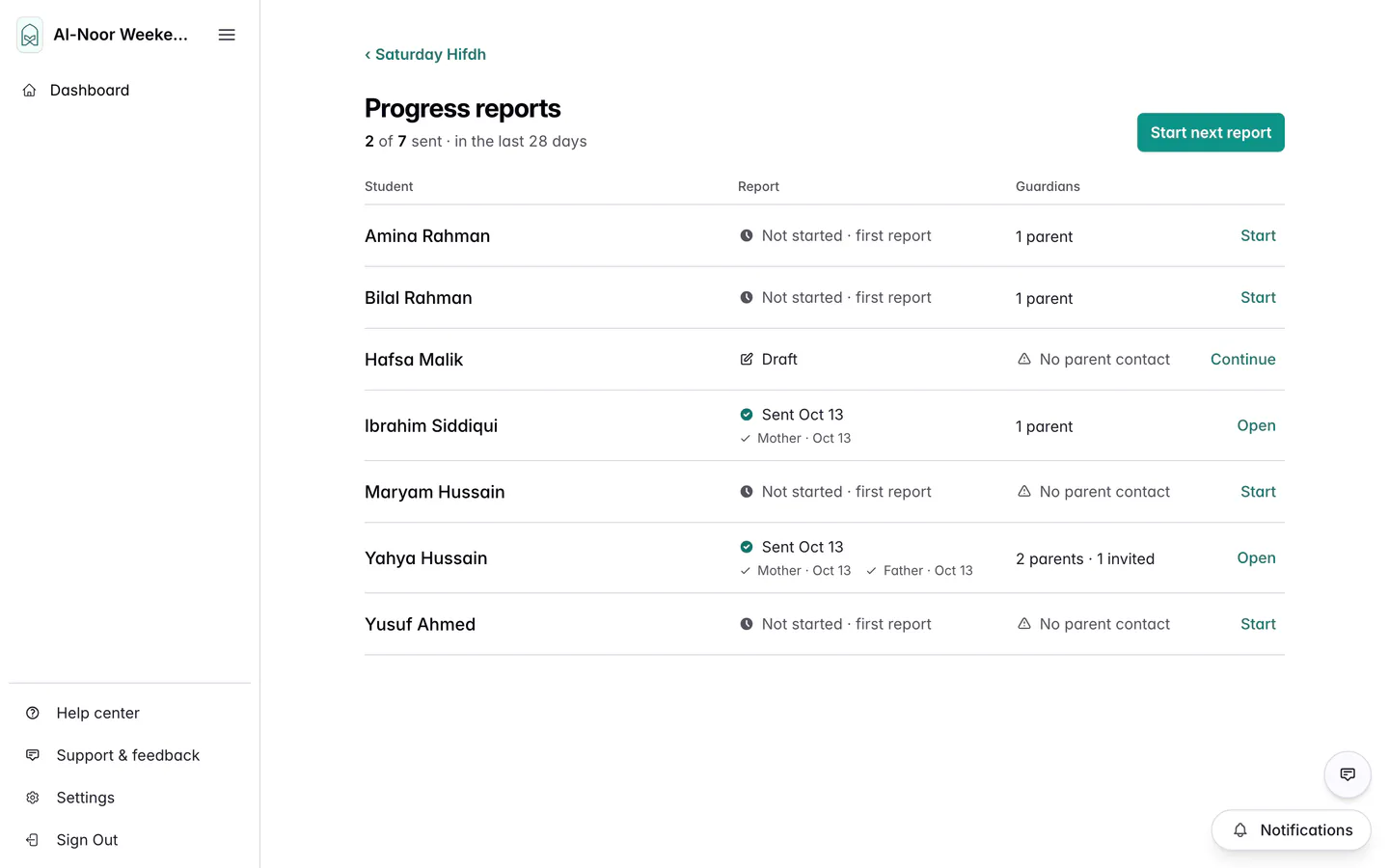
Press Start next report for the first student whose report isn’t sent, or Start, Continue or Open on any row. After each send, Next student takes you to the next one, so you can do the whole class in one sitting. When every report is sent, it says All sent · back to the class list.
On a phone
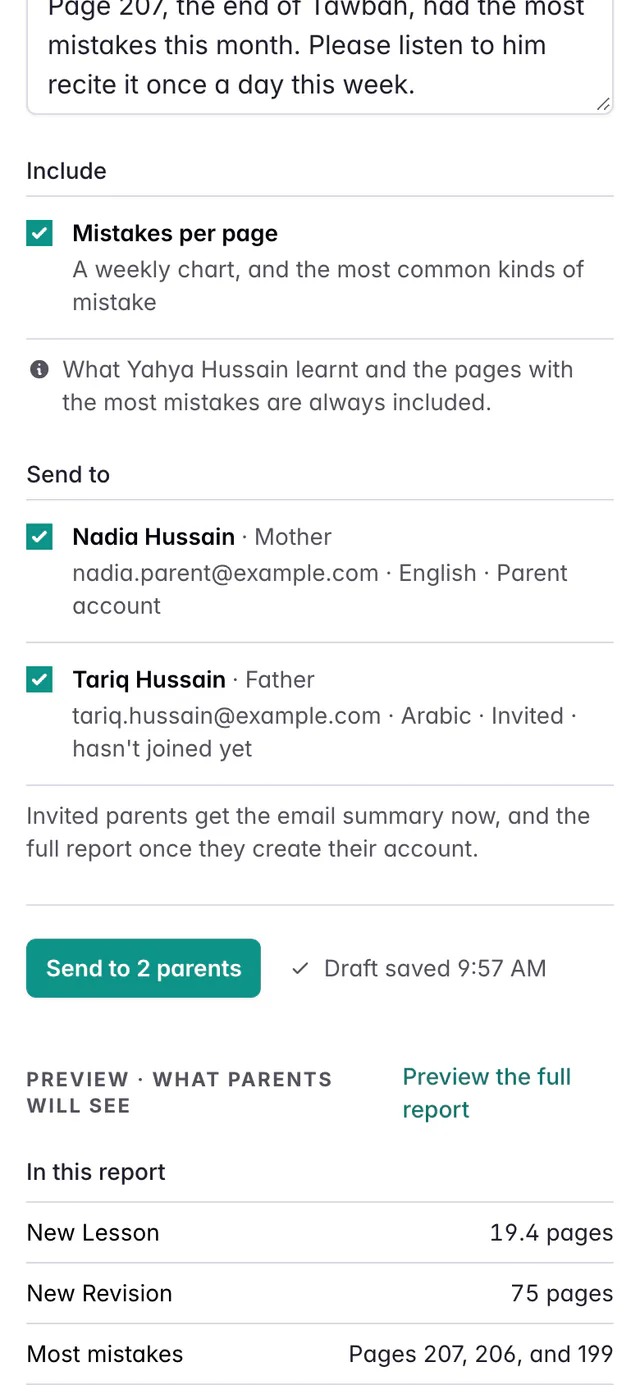
The form comes first. Under it, In this report sums up the pages for each type and the pages with the most mistakes. Press Preview the full report to read the whole report before you send it.
What parents get
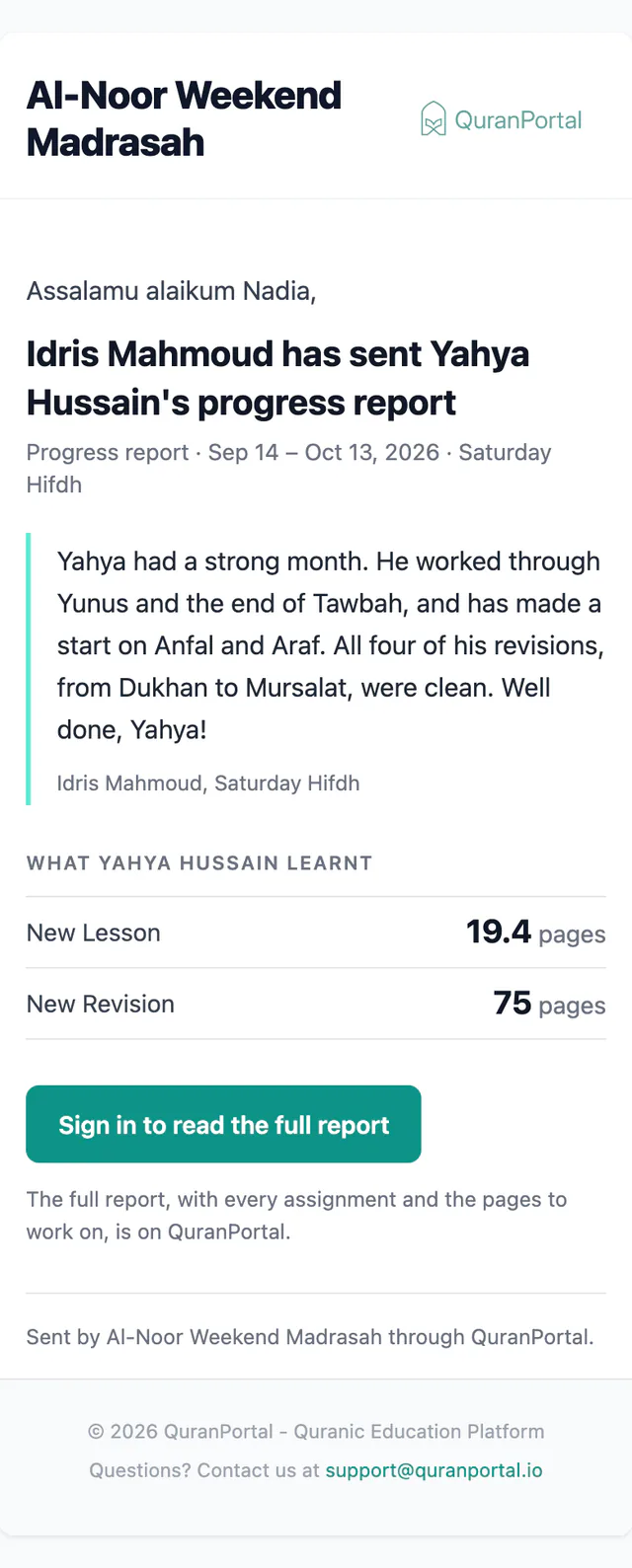
Each parent gets an email in their own language, with your comment and the pages of each type. It never mentions a Fail. The button in it opens the full report:
- Sign in to read the full report for a parent with a QuranPortal account.
- Create your account to read the full report for a parent who was invited and hasn’t joined. The button takes them straight to creating their account, renewing their invitation first if it has run out, and brings them back to the report once they’ve joined.
The full report is only for the student’s parents, teachers and school admins. It opens from the email or from Progress reports on the parent’s home page, which lists every report sent about their children.
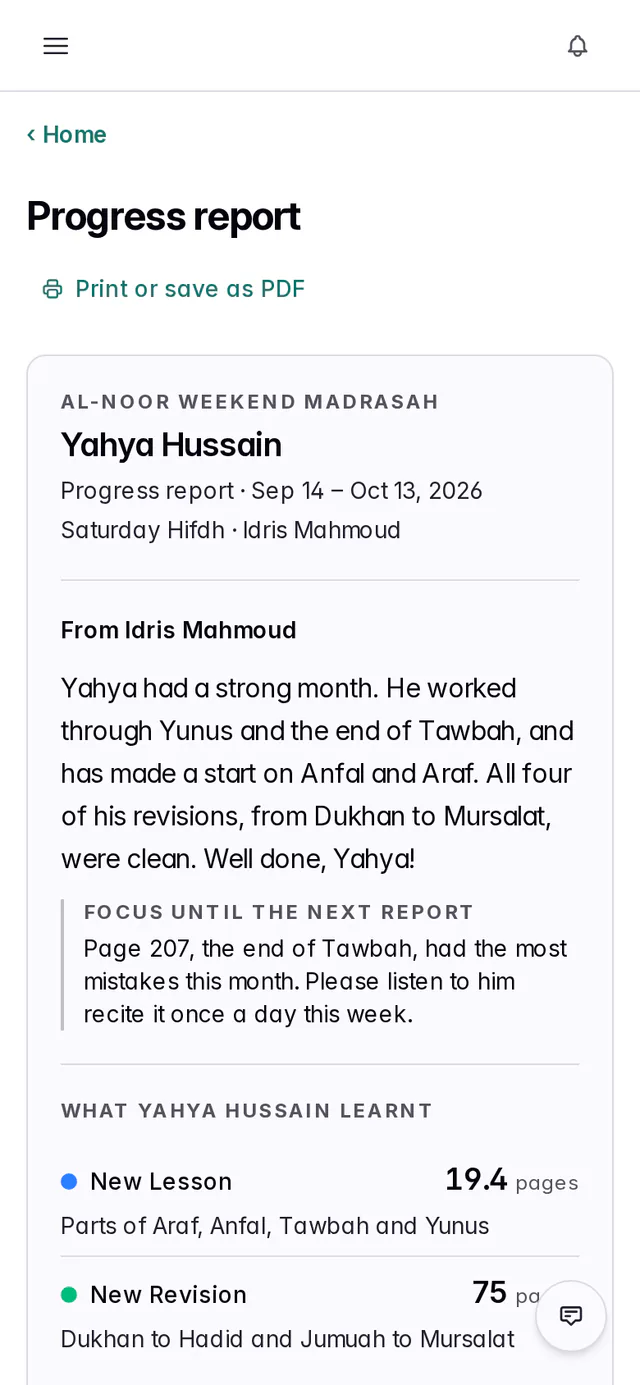
To keep a copy on paper, press Print or save as PDF. The printout has the report alone, on one sheet for a month’s report, without the full list of assignments. To save a PDF, choose Save as PDF in the print window.
Questions and answers
Can I change a progress report after sending it?
No. A sent report is saved exactly as parents saw it, so regrading an assignment later doesn’t change it either. If something needs correcting, write a new report for the same student and send it.
Why isn’t a parent listed in Send to?
Send to lists mothers, fathers and guardians who are connected to the student, and those invited who haven’t joined yet. Observers are never listed. If a parent is missing, a school admin can press Invite a parent in Send to. A parent who already has an account at your school is connected straight away.
Why does it say pages recorded in QuranPortal?
Where they are now counts only what was recorded in QuranPortal, through graded work or history imported for the student. Anything a student memorised before they joined, and was never recorded, isn’t counted, so the report says recorded rather than memorised.
Do parents see a Fail in the email?
No. The email has your comment and the pages of each type. A Fail is only mentioned in the full report, as one quiet line, when an assignment’s latest grade is Fail.
What does Since last report cover?
From the day after the student’s last sent report ended, up to today. A student’s first report covers the last 4 weeks instead. You can change either date before you send.
Related guides
- Every way to create an assignment The quickest ways to set a student's New Lesson, revision, reading or Qaidah work in QuranPortal, and which one to use when.
- Set up the Practice center for your students Turn on home practice, choose listening defaults, turn listening on for assignments, and sign a child's device in with a QR code or letter code.
Still stuck?
Tell us what you were trying to do and we’ll help. Email support@quranportal.io. Need to chat with the team? Join our WhatsApp group.